
Car Play Sync for Android Auto
BLOOMUPAuto & Vehicles
4.5292.00 Reviews
- Version
- 1.87.22
- Installs
- 1.00M
- Age Rating
- Everyone
Screenshots
Our Review of Car Play Sync for Android Auto
 Analysis by Appyee
When I’m deciding whether to add a car-connectivity app, I start with a simple question: will it make the first few minutes of a drive less fiddly, or just give me another screen to manage? Car Play Sync for Android Auto is aimed at people who want their Android phone and car display to work together, with navigation, media and connection tools in the same driving routine. It is a free Auto & Vehicles app from BLOOMUP, and its focus is practical: get the phone linked, keep useful controls visible, and avoid handling the handset once the car is moving.
Making the connection fit your routine
I’d use this section to focus on making the connection predictable before adding extra steps: decide which phone should lead, check the dashboard while parked, and settle on a simple starting routine. Once that baseline feels dependable, it becomes easier to see which settings are worth adjusting and which are better left alone.
A sensible first-drive workflow
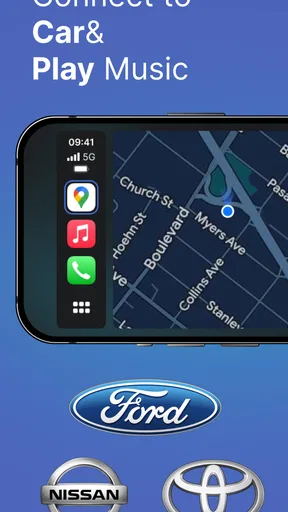
Okay, so picture this: you’re in your car, you’ve got your Android phone, and you’re ready to hit the road. But instead of fumbling around with your phone while driving (which, let’s be honest, is a total no-no), you just plug it in, and voila! Your car’s display is now an extension of your phone. With Car Play Sync for Android Auto, it’s like your car and phone are speaking the same language.
The app’s interface is super user-friendly. You don’t need to be a tech wizard to figure it out. It’s got all those apps you love using at your fingertips: maps, music, messages – you name it. And the best part? It’s all hands-free. Talk about a game-changer for safety and convenience.
What to check before relying on it
I’d treat the first setup as a short test rather than something to do while rushing out the door. Park first, connect the phone as prompted, and confirm that the car recognizes the connection before choosing a route or playlist. A cable that is loose, charge-only, or worn can make a connection seem like an app problem; checking the cable and trying a second one is a practical way to narrow that down. If your car uses a wireless link, start with the pairing steps the app presents and give the phone and dashboard a moment to find each other.
It also helps to decide what you want to see before driving. Put navigation first for an unfamiliar trip, or make audio the easy choice for a commute you already know. I wouldn’t spend time rearranging screens at the roadside. A quick parked check is safer, and it prevents the familiar cycle of tapping through menus after the journey has started.
Navigation for familiar and unfamiliar roads
Navigation is one of those things that can make or break a drive. With this app, you’ve got access to Google Maps right on your car’s display. No more squinting at your phone screen or missing exits because you couldn’t quite make out the tiny directions. The app gives you that clear, easy-to-read navigation display that makes getting from point A to point B a breeze.
And if you’re a fan of Waze, you’re in luck. Car Play Sync for Android Auto supports it too. So, whether you’re dodging traffic jams or just want to find the quickest route, this app’s got your back.
For a new destination, I’d enter the address while parked and check the first turn before pulling away. For a regular commute, setting the route before leaving keeps the start of the trip calmer, even if you already know most of the way. Navigation is only as helpful as the glance it takes to understand it, so I’d keep the display simple and let voice guidance do more of the work. If a route changes, wait until it is safe to act rather than trying to correct it in motion.
Make audio predictable, not distracting
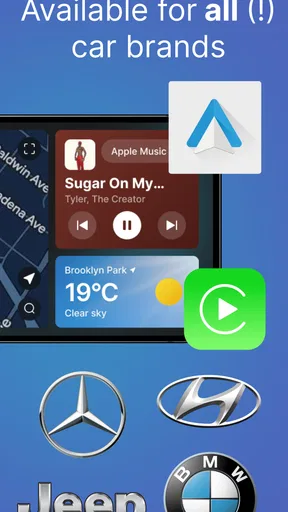
Let’s talk tunes. Because really, what’s a drive without the perfect soundtrack? The app lets you stream music from your favorite apps like Spotify, Apple Music, or even your local library. The integration is seamless, and the sound quality through your car’s speakers is top-notch. Whether you’re into rock, pop, or podcasts, your drive just got a whole lot more entertaining.
One useful habit is to choose a playlist, album, or podcast before you set off, then use the dashboard for simple actions such as pausing or skipping. That is less distracting than searching through a library once you are moving. A passenger can help with a longer search, but if you are driving alone, keeping the choice short and familiar is the more sensible trade-off. Also check volume and playback at a standstill: a phone connected to the car can behave differently from audio played directly through the handset.
Messages, calls and the limits of voice control
We all know how important it is to stay connected, but we also know the dangers of using a phone while driving. This is where the app shines. It allows you to send and receive messages hands-free. You can dictate messages or have them read out to you without ever taking your eyes off the road. It’s a bit like having your personal assistant riding shotgun.
Calls are just as easy. You can make and receive them without a hitch. The voice clarity is excellent, and it feels like you’re talking to the person right there in the car with you.
Hands-free does not mean distraction-free. Dictation can mishear names, street references or a noisy voice note, so I’d keep replies brief and avoid composing anything that needs careful editing. If a conversation becomes complicated, let it wait until you are parked. The useful question is not whether a message can be handled from the dashboard, but whether handling it is worth interrupting attention on that particular road.
Settings and repeatable shortcuts
Now, let’s talk setup. You might be wondering if it’s a hassle to get everything running smoothly. Good news: it’s not. The app walks you through a straightforward setup process. Just connect your phone to your car via USB, and you’re pretty much good to go. It’s intuitive, and before you know it, you’ll be navigating your car’s infotainment system like a pro.
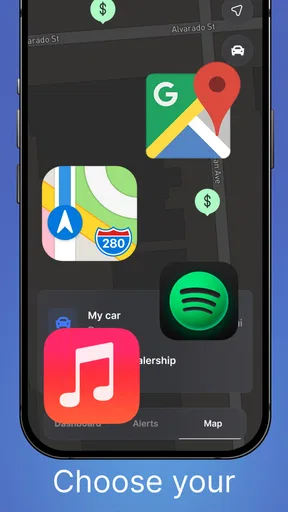
And for those who like to tinker, there are customization options. You can adjust the layout and prioritize which apps you want easy access to on your car’s display. It’s all about making the experience as personal and efficient as possible.
I’d use that flexibility to remove decisions, not to create a display full of choices. Keep the handful of services you reach for most near the front, and leave occasional tools out of the main flow. A helpful test is to ask whether you can find the next action with one quick glance while parked. If the answer is no, simplify the arrangement. The benefit of a repeatable setup is that you spend less time learning where things moved from one trip to the next.
For a daily drive, a small routine can make the connection feel much more dependable: connect before starting, confirm audio is coming through the car, then select navigation if needed. If something fails, change one thing at a time—check the cable or wireless pairing, then reconnect—rather than resetting every setting at once. That makes it easier to see what actually fixed the issue and avoids turning a minor hiccup into a longer setup session.
Where it fits—and where another option may suit you
This app makes the most sense for someone whose car already supports the kind of phone-to-dashboard connection they want and who prefers a familiar set of navigation, music and messaging choices. It is also useful for drivers who share a car and want a consistent phone-based routine, though each person should take a moment to confirm their own connection and preferred audio before setting off. For a short regular commute, the payoff is less about novelty and more about not having to rebuild the same setup every morning.
If your car’s built-in system already connects reliably and gives you the controls you need, there may be little reason to add another layer. The same goes for someone who mainly wants a dedicated navigation device or prefers to keep the phone completely separate from the dashboard. A standalone car system can be a better fit when phone pairing is unreliable, while using the car maker’s own interface may be simpler if it already handles your everyday needs. I’d choose this app for the phone-centred workflow, not on the assumption that it can make every car compatible.
Its store summary also points to a digital car key, launcher, screen mirroring, dashboard and remote wireless link. Those are useful areas to look for if they match your setup, but I would not treat the mention as a guarantee that every function works with every vehicle or phone. Compatibility is the practical deciding point: check the connection path your car supports and test the features you care about while parked before making them part of a routine. That small check is more valuable than assuming that a label alone promises a particular result.
Good habits for shared cars and changing plans
A realistic example is a weekday school drop-off followed by a longer drive to an unfamiliar appointment. Before leaving, I’d connect the phone, choose the route and start a familiar audio option. At the first stop, I could safely adjust the destination or switch what is playing; while moving, I’d leave the screen alone and rely on voice guidance. This is where a stable layout helps: the familiar commute and the new route use the same basic controls, so the extra destination does not turn into a search through menus.
In a shared car, I’d also avoid assuming that yesterday’s setup will be ready for the next driver. Confirm whose phone is connected and which audio source is active before pulling away. If a passenger is present, they can handle a route change or find a different podcast, but I would keep the driver’s role focused on driving. That division of attention is a simple, realistic advantage of preparing the dashboard before the car moves.
One trade-off is that a phone-centred setup depends on the phone being ready: charged, connected and behaving normally. If the connection drops, the car’s own controls or a phone mounted securely for a parked adjustment may be the fallback, depending on the vehicle. I would not plan a route that requires fiddling with a connection while driving. The app is most useful when it supports a routine, not when it becomes another thing you have to troubleshoot on the road.
Who should give it a try
At no charge to install, it is easy to consider if you want to bring phone-based navigation and media into the car, though in-app purchases are available at $14.99 to $49.99 per item. I’d look at what each purchase actually offers and whether it solves a need in your own setup before spending. The app is rated for Everyone, and it has a 4.4 average from around 34,000 ratings, with more than a million installs. Those figures suggest it has found an audience, but they cannot tell you whether your particular car connection will be smooth.
The best fit is a driver who values having familiar phone services in reach and is willing to spend a few minutes checking the setup in advance. Someone who rarely uses dashboard apps, dislikes pairing devices, or already has a dependable built-in system may prefer to keep things as they are. It also isn’t a substitute for safe driving habits: if a task needs your eyes or sustained attention, wait until you are stopped, regardless of how convenient the interface seems.
The app was released on July 15, 2023, and its current version is 1.31.4; it requires Android 7.0 or later. I’d keep the app updated through the usual route and recheck the connection after a phone or car-system change, since a setup that worked before may need another quick test. These details matter most when deciding whether an older handset is suitable and when planning a first installation, rather than as a reason to expect every feature to behave identically on every vehicle.
A considered verdict for everyday driving
If you’re someone who spends a lot of time on the road, Car Play Sync for Android Auto is a must-have. It’s more than just an app; it’s a companion that makes every drive safer, more connected, and a lot more fun. Whether it’s the seamless integration of apps, the ease of use, or the enhanced safety features, there’s a lot to love here.
I’d soften the “must-have” part for drivers whose existing dashboard already does the job: the value depends on your car, your phone and whether you actually want a connected, phone-led setup. For the right combination, its strongest benefit is the repeatability of having navigation, media and communication in one familiar place. I would judge it by a few ordinary drives—one familiar route, one new destination and one audio session—rather than by how impressive the setup looks while parked.
So, if you’re ready to upgrade your driving experience and make every trip a little more enjoyable, you might want to give this app a spin. Trust me, once you experience the convenience and connection it offers, you’ll wonder how you ever drove without it.
My honest recommendation is to try it only after checking that your car and phone can make the connection you want, then keep the layout restrained and the setup routine simple. If those basics work, the app can make a phone-based dashboard feel more orderly; if they do not, a built-in system or a simpler alternative is the better choice. That practical test—not a promise of universal compatibility—is what will tell you whether it belongs in your daily drive.
Privacy and Permissions
See what permissions an app requests and how it handles your data.
- Identity
- find accounts on the device
- Contacts
- find accounts on the device, read your contacts
- Location
- approximate location (network-based), precise location (GPS and network-based)
- Phone
- read phone status and identity
- Photos/Media/Files
- read the contents of your USB storage, modify or delete the contents of your USB storage
- Storage
- read the contents of your USB storage, modify or delete the contents of your USB storage
- Camera
- take pictures and videos
- Microphone
- record audio
- Wi-Fi connection information
- view Wi-Fi connections
- Device ID & call information
- read phone status and identity
- Other
- view network connections, pair with Bluetooth devices, access Bluetooth settings, change network connectivity, full network access, run at startup, control vibration, prevent device from sleeping, read Google service configuration
Verdict
Strengths of Car Play Sync for Android Auto
- Seamless integration with Android Auto
- User-friendly interface and navigation
- Supports a wide range of car models
- Regular updates enhance compatibility
- Efficient data usage for maps
Limitations of Car Play Sync for Android Auto
- Limited customization options
- Some features require premium version
- Occasional connectivity issues
- Not all apps are supported
- Voice control can be unresponsive
Similar Picks in This Category
View All
Android Auto
Google LLC4.1

maxim — order a taxi & food
PT. SITO4.7

Штрафы ГИБДД: проверка с фото
Pays LLC – Штрафы ГИБДД4.7

Номерограм – проверка авто
Авто Ассист4.8

Дром Авто
Дром4.9

Frequently Asked Questions
What is Car Play Sync for Android Auto?
Car Play Sync for Android Auto is an application designed to integrate your smartphone with your car's infotainment system. It allows you to access various apps like navigation, music, and messaging directly from your car's display, offering a seamless driving experience without the need to handle your phone.
Is Car Play Sync compatible with all vehicles?
Car Play Sync for Android Auto is compatible with most vehicles that support Android Auto. However, it's essential to verify your car's compatibility with Android Auto before downloading the app. Some older models may require additional hardware or software updates to ensure full functionality.
What features does Car Play Sync offer?
Car Play Sync provides several features, including navigation, music streaming, messaging, and calling, all accessible through your car's display. It supports voice commands via Google Assistant, allowing users to keep their focus on the road while managing tasks hands-free, enhancing both convenience and safety.
Are there any subscription fees for Car Play Sync?
Car Play Sync for Android Auto is typically available for a one-time purchase or free download, depending on the version or any promotional offers. However, some features or premium services might require in-app purchases or subscriptions, so it’s advisable to review the app's pricing details carefully.
How do I set up Car Play Sync in my vehicle?
To set up Car Play Sync, first ensure your vehicle supports Android Auto. Connect your smartphone to the car's USB port or pair via Bluetooth if supported. Follow the on-screen prompts on your car's display to complete the setup. Make sure your phone's Android Auto app is updated to the latest version for optimal performance.
